
This article covers these topics:
- Introduction to report APIs
- Pulling response data from a QMob server
- Pushing response data to a remote server
Introduction to report APIs
QMob report APIs can be used to automate the transmission of survey data from the QMob dashboard to a remote server. QMob provides two types of APIs:
- Pull APIs: used to fetch survey data at regular intervals from a QMob server
- Push APIs: used to automatically transmit survey data to a remote server when new entries are available
Pulling response data from a QMob server
The QMob report service is a web service for fetching answer data via a HTTP POST request. Essentially, the service can be used to automate syncing of data between the QMob back-end and any other back-end. The report is requested via a POST request, and with the correct parameters, a CSV report is returned.
POSTS are directed to the QMob server of your own project using a URL with the following format:
Which will redirect the api call to the correct project. When using the Data API, your current web session is terminated in order to login using the credentials used as parameters in the api call, so don't be alarmed if you are forcefully logged out from the back-end while you are using the data API.
For unix users (for instance mac), you can use the curl command to get the report/images folder:
URL parameters
<branded_instance>
The first word of your Dashboard URL, e.g. "dashboard"

<project_name>
You can find this at the top right corner of your dashboard, please note this field is case sensitive

Request API
The POST should contain the following parameters:
Required parameters
| Parameter name | Description | Values |
| user_name |
A back-end user with permissions and company that allows access to the report |
your Dashboard username |
|
password |
A correct password for the user, so we can authenticate |
your Dashboard password |
|
survey_id |
The numeric id of the survey |
can be found by hovering on the survey |
|
report_id |
The numeric id of the report we want to request, not required for images_zip |
in the Report tab of the survey |
Optional parameters
| Parameter name | Description | Values |
| start_time |
Only answers stored after this time will be included. |
A GMT timestamp, in format dd.MM.yyyy HH:mm:ss |
|
end_time |
Only answers stored on or before this time will be included. |
A GMT timestamp, in format dd.MM.yyyy HH:mm:ss |
|
report_format |
Used to set a different format than CSV for the returned report |
csv sav (Defaults to csv when not defined) |
|
entry_types |
Restrict data to specific Entry Type(s). One or multiple comma separated values can be defined. |
complete (Defaults to "all" when not defined) |
Return values
|
Value |
Description |
|
Success |
The requested report file will be returned (CSV/zip folder of images/SAV) |
|
Failure: Authentication failure |
The user_name/password combination was invalid, or the user could otherwise not be authenticated |
|
Failure: Survey not found |
No survey with id survey_id could be found in the project that the user has access to |
|
Failure: Report not found |
No report with id report_id could be found for this survey |
|
Failure: Missing required parameter code:x |
One of the required parameters was missing; codes correspond to: |
|
Failure: No photos found for survey |
Report format is images_zip, but no images were found for this survey |
|
Failure: Unexpected exception |
General purpose failure, caused by exceptions during report generation |
Example
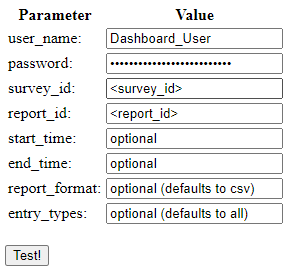
In order to test the pull API you can add the following HTML code to the source of your HTML page and change the action URL to your project URL:
<form id="apitest_form" name="apitest_form" method="POST" action="https://<branded_instance>.myqmob.com/reactor-webapp/pt/<project_name>/pn/lumicompass/api/get_data">
<table>
<thead>
<th>Parameter</th>
<th>Value</th>
</thead>
<tbody>
<tr><td>user_name:</td><td><input type="text" name="user_name" value=""/></td></tr>
<tr><td>password:</td><td><input type="password" name="password" value=""/></td></tr>
<tr><td>survey_id:</td><td><input type="text" name="survey_id" value=""/></td></tr>
<tr><td>report_id:</td><td><input type="text" name="report_id" value=""/></td></tr>
<tr><td>start_time:</td><td><input type="text" name="start_time" value=""/></td></tr>
<tr><td>end_time:</td><td><input type="text" name="end_time" value=""/></td></tr>
<tr><td>report_format:</td><td><input type="text" name="report_format" value=""/></td></tr>
<tr><td>entry_types:</td><td><input type="text" name="entry_types" value=""/></td></tr>
</tbody>
</table>
<br/>
<input type="submit" name="s" value="Test!" class="apitest_button"/>
</form>
The previous HTML code will create a Data API User Interface looking like this, where you can type in the fields (the same parameters explained above)
Pushing response data to a remote server
To push the data of your project to a remote server, you need to specify the server URL in the designated field when you Creating reports. The URL should be valid and it is highly recommended that a secure connection via HTTPS is used.
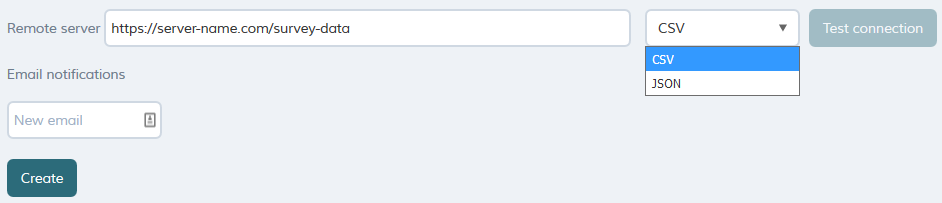
The data can be pushed in .csv format or JSON format. You can push the data to many remote servers by creating multiple reports and set a different URL in each report. Always make sure you are NOT including media files.
JSON Structure
{"survey":
{"id":"3173","name":"JSON structure"},
"variables":
[{"variable":
{"id":"m1",
"label":"Entry ID",
"name":"EntryId",
"type":"text"}},
{"variable":
{"id":"m2",
"label":"Entry Type",
"name":"EntryType",
"type":"text"}},
{"variable":
{"id":"m3",
"label":"Username",
"name":"RespondentId",
"type":"text"}},
{"variable":
{"id":"m4",
"label":"Upload time",
"name":"Timestamp",
"type":"datetime"}},
{"variable":
{"id":"m5",
"label":"Start time",
"name":"EntryStartTime",
"type":"datetime"}},
{"variable":
{"id":"m6",
"label":"End time",
"name":"EntryEndTime",
"type":"datetime"}},
{"variable":
{"id":"m7",
"label":"Device Timezone",
"name":"ClientTz",
"type":"text"}},
{"variable":
{"id":"m8",
"label":"Device Timezone offset",
"name":"ClientTzOfs","type":"text"}},
{"variable":
{"id":"m9",
"label":"Survey revision",
"name":"SurveyRevision",
"type":"int"}},
{"variable":
{"id":"m10",
"label":"Survey wave",
"name":"SurveyWave",
"type":"int"}},
{"variable":
{"id":"m11",
"label":"Length (sec)",
"name":"EntryLength",
"type":"int"}},
{"variable":
{"id":"m12",
"label":"Entry location",
"name":"EntryLocation",
"type":"text"}},
{"variable":
{"id":"m13",
"label":"Raw location data",
"name":"RawLocationData",
"type":"text"}},
{"variable":
{"id":"m14",
"name":"Preview",
"type":"text"}},
{"variable":
{"id":"m15",
"label":"Geo-fence name",
"name":"GeoFenceName",
"type":"text"}},
{"variable":
{"id":"m16",
"label":"Trigger location latitude",
"name":"TriggerLocationLatitude",
"type":"text"}},
{"variable":
{"id":"m17",
"label":"Trigger location longitude",
"name":"TriggerLocationLongitude",
"type":"text"}},
{"variable":
{"id":"m18",
"label":"Trigger location accuracy",
"name":"TriggerLocationAccuracy",
"type":"text"}},
{"variable":
{"id":"m19",
"label":"App version",
"name":"Lumi-SURVEY-Version",
"type":"text"}},
{"variable":
{"id":"m20",
"label":"OS name",
"name":"Device-OS-Name",
"type":"text"}},
{"variable":
{"id":"m21",
"label":"OS version",
"name":"Device-OS-Version",
"type":"text"}},
{"variable":
{"id":"m22",
"label":"Device make",
"name":"Device-Manufacturer",
"type":"text"}},
{"variable":
{"id":"m23",
"label":"Device model",
"name":"Device-Model",
"type":"text"}},
{"variable":
{"id":"m24",
"label":"Device type",
"name":"Device-Type",
"type":"text"}},
{"variable":
{"id":"1",
"name":"Q1",
"questionText":"this is an info screen",
"type":"info"}},
{"variable":
{"id":"2",
"name":"Q2",
"questionText":"Single Choice",
"type":"single",
"values":
[{"code":"1","label":"choice 1"},
{"code":"2","label":"choice 2"},
{"code":"3","label":"choice 3"},
{"code":"4","label":"choice 4"}]}},
{"variable":
{"id":"3",
"name":"Q3",
"questionText":"Multiple","type":"multi",
"values":
[{"code":"1","label":"choice 1"},
{"code":"2","label":"choice 2"},
{"code":"3","label":"choice 3"},
{"code":"4","label":"choice 4"}]}},
{"variable":
{"id":"4",
"name":"Q4",
"questionText":"Slider",
"type":"slider",
"values":
[{"code":"1","label":"choice 1"},
{"code":"2","label":"choice 2"},
{"code":"3","label":"choice 3"},
{"code":"4","label":"choice 4"},
{"code":"5","label":"choice 5"},
{"code":"6","label":"choice 6"},
{"code":"7","label":"choice 7"},
{"code":"8","label":"choice 8"},
{"code":"9","label":"choice 9"},
{"code":"10","label":"choice 10"}]}},
{"variable":
{"id":"5",
"name":"Q5",
"questionText":"Ranking",
"type":"ranking",
"values":
[{"code":"1","label":"choice 1"},
{"code":"2","label":"choice 2"},
{"code":"3","label":"choice 3"},
{"code":"4","label":"choice 4"}]}},
{"variable":
{"id":"6",
"name":"Q6",
"questionText":"Open text question",
"type":"text"}},
{"variable":
{"id":"7",
"name":"Q7",
"questionText":"Open Numeric question",
"type":"numeric"}},
{"variable":
{"id":"8",
"name":"Q8",
"questionText":"Multiple Text",
"type":"multiple_text",
"values":
[{"code":"1","label":"field 1"},
{"code":"2","label":"field 2"},
{"code":"3","label":"field 3"}]}},
{"variable":
{"id":"9",
"name":"Q9",
"questionText":"Multiple Numeric",
"type":"multiple_numeric",
"values":
[{"code":"1","label":"field 1"},
{"code":"2","label":"field 2"},
{"code":"3","label":"field 3"},
{"code":"total","label":"1000"}]}},
{"variable":
{"id":"11",
"name":"Q11",
"questionText":"Date/Time question",
"type":"datetime"}},
{"variable":
{"id":"12",
"name":"Q12",
"questionText":"Capture an image",
"type":"image"}},
{"variable":
{"id":"13",
"name":"Q13",
"questionText":"Record a video",
"type":"capture_video"}},
{"variable":
{"id":"14",
"name":"Q14",
"questionText":"",
"type":"video"}},
{"variable":
{"id":"15",
"name":"Q15",
"questionText":"",
"type":"barcode"}},
{"group":
{"id":3,
"loopType":"count",
"name":"Loop 1",
"variables":[
{"variable":
{"id":"19",
"name":"Q19",
"questionText":"",
"type":"info"}}]}},
{"group":
{"id":4,
"loopType":"piped",
"loopVariable":"3",
"name":"piped loop",
"variables":[
{"variable":
{"id":"18",
"name":"Q18",
"questionText":"",
"type":"info"}},
{"variable":
{"id":"20",
"name":"Q20",
"questionText":"Piped from Multi choice question $answer(Q3)?",
"type":"multi",
"values":
[{"code":"1","label":"choice 1"},
{"code":"2","label":"choice 2"},
{"code":"3","label":"choice 3"},
{"code":"4","label":"choice 4"}]
}
}
]}}],
"records":
[{"id":"109280",
"variables":
[{"id":"m1","value":"109280"},
{"id":"m2","value":"complete"},
{"id":"m3","value":"Username"},
{"id":"m4","value":"2014-05-20T14:56:34Z"},
{"id":"m5","value":"2014-05-20T14:54:37Z"},
{"id":"m6","value":"2014-05-20T14:56:31Z"},
{"id":"m7","value":"Europe/Helsinki"},
{"id":"m8","value":"10800000"},
{"id":"m9","value":"146794"},
{"id":"m10","value":"1"},
{"id":"m11","value":"114"},
{"id":"m12","value":""},
{"id":"m13","value":""},
{"id":"m14","value":""},
{"id":"m15","value":""},
{"id":"m16","value":""},
{"id":"m17","value":""},
{"id":"m18","value":""},
{"id":"m19","value":"2.1.0"},
{"id":"m20","value":"iOS"},
{"id":"m21","value":"7.1.1"},
{"id":"m22","value":"Apple"},
{"id":"m23","value":"iPhone5,2"},
{"id":"m24","value":"Apple iPhone5,2"},
{"id":"1","value":""},
{"id":"2","value":"choice 3"},
{"id":"3","value":["0","choice 2","choice 4"]},
{"id":"4","value":"choice 5"},
{"id":"5","value":["2","4","1","3"]},
{"id":"6","value":"Hello world!"},
{"id":"7","value":"5"},
{"id":"8","value":["Answer 1","Answer 2","Answer 3"]},
{"id":"9","value":["200","500","300","1000"]},
{"id":"11","value":"2014-05-20T14:54:37Z"},
{"id":"12","value":"12-109280.jpg"},
{"id":"13","value":"13-109280.mov"},
{"id":"14","value":""},
{"id":"15","value":"X18-13060-02"},
{"group":
{"id":"4",
"loops":
[{"loopValue":"2",
"variables":
[{"id":"2","value":"choice 2"}]},
{"loopValue":"4",
"variables":
[{"id":"4","value":"choice 4"}]
}]
}
}
]}
]}
How it works
When you create a report and set the remote server URL, the API creates a separate table in the database for the entries recorded for this project. The new table has only the answers you are including in this report (Questions included in the created report). The API monitors this table and polls for updates every 1 minute and it uses HTTP POST to push one entry at a time to the remote server in the selected format.
For security reasons, each HTTP POST has a timeout of 5 seconds when the connection to the remote server fails, after which the specified server will be blacklisted for 10 minutes. This prevents the API from getting stuck trying to connect. Once the 10 minutes have passed the API will try to reconnect to the specified server and POST data again.
How to use this API
The JSON API helps you stream the data as it is received. The receiving server should be prepared to handle this data as it comes. We recommend a secure connection (HTTPS) on the receiving server and storing mechanism (e.g. disk storage). This means you are building your own database with the entries coming from your QMob instance, and your system will be mimicking real-time streaming (with 1 minute latency).
With the nature of JSON format, you are free to utilize the data as you wish. However, you have to consider the identification of the different variables in the report (refer to JSON Structure).
If you are only interested in having the report in JSON format without regard to the streaming concept, once the data is collected (project is complete), generate a report without the media files (do not include images) and click the following link after customizing it:
https://<branded_instance>.myqmob.com/reactor-webapp/pt/<project_name>/pn/lumicompass/pe/report_dl/action/report_dl_with_or_without_images/ft/json/sid/<survey_id>/rid/<Report_id>
This will download the current report in JSON format.
The customizable variables shown in the link in the format: <variable_name>, are detailed in the table below
| Variable_name | Description |
|---|---|
| <branded_instance> | the name of your instance, present in your dashboard URL e.g. dashboard in: company.myqmob.com |
| <project_name> | the name of the project, present in your dashboard URL while on the Home page (Project view) e.g. lumi_compass in:https://company.myqmob.com/reactor-webapp/pt/lumi_compass/pn/lumicompass/pe/surveylist |
| <survey_id> | the id of your survey, can be seen in the Survey view |
| <report_id> | the id of the report that you have created |
Changing Default Settings
The API settings are generic, and applies to all projects on your dashboard. Any changes to default values for update frequency, batch size, HTTP POST timeout, or blacklist time must go through the Owner of your QMob instance. Changes can only be made as part of an instance update.