
When you use one or more lists of respondents and proceed to publish, you reach the below view, where you can check any project compatibility requirements and choose how to invite the respondents:
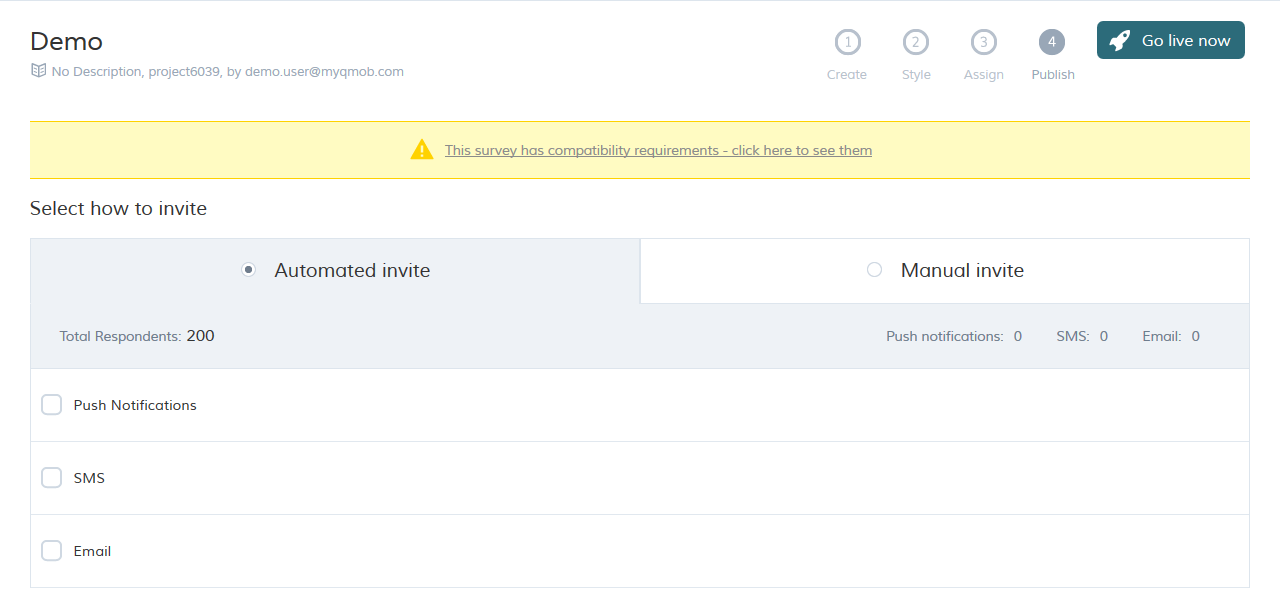
There are two ways to invite respondents:
- By automated invite.
- By manual invite.
Automated invite
By selecting automated invite, QMob will automatically send invitations to respondents. There are three automatic invitation methods available. Select, and configure, the appropriate method, as described below. Once you are ready to go live, click go live now.
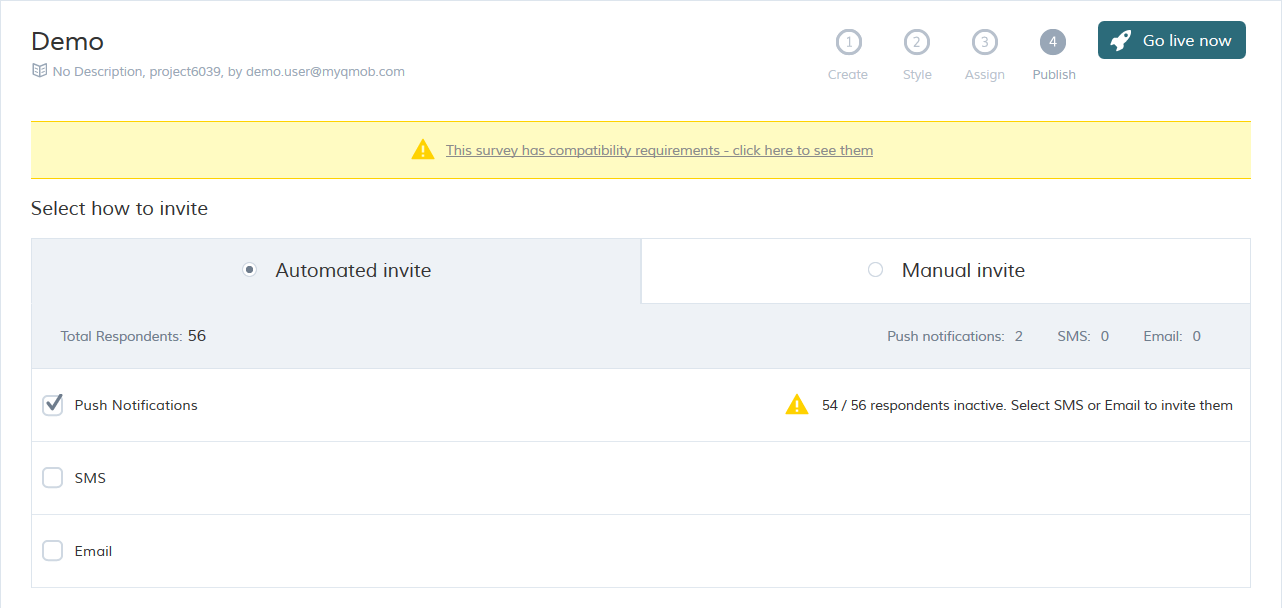
Push Notifications: suitable for existing respondents. A respondent must be logged in to the QMob app (active status) to receive this invitation. It has the highest priority when selected along with other invitation methods. As you can see below, the system shows the number of respondents who can receive these notifications at the top (2). It also provides a warning about any remaining respondents who cannot receive notifications because not in active status (54).
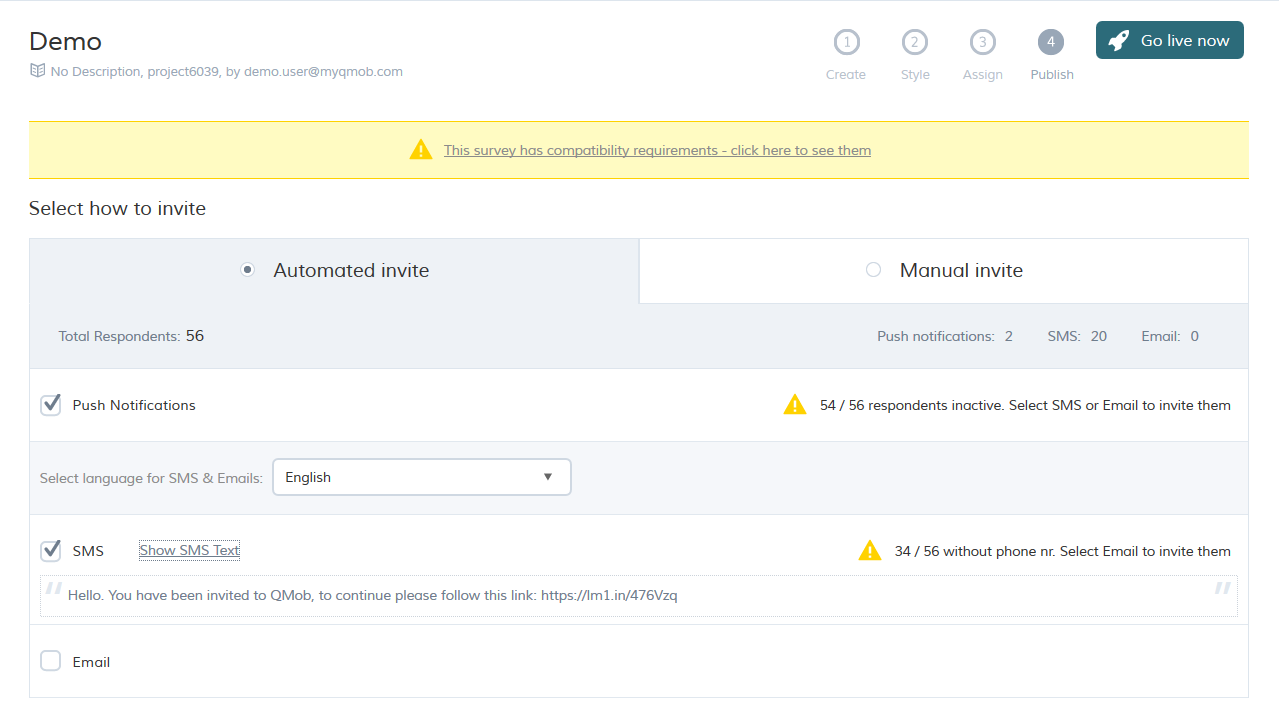
SMS: can be sent to any respondent with a registered valid phone number. It has the second highest priority when selected along with with push notifications. As you can see below, the system shows the number of respondents who can receive a SMS at the top (20). It also provides a warning about any remaining respondents who cannot receive a SMS (34).
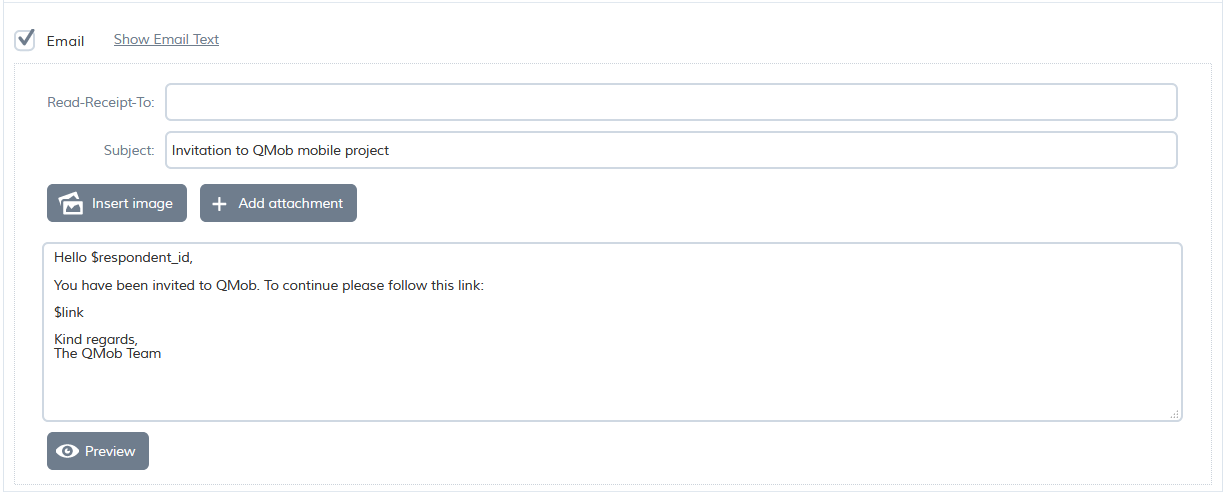
Email: can be sent to any respondent with a registered valid email address. This method has the lowest priority when selected with either (or both) of the other two methods. As you can see below, the system shows the number of respondents who can receive these emails at the top (34). It also provides a warning about any remaining respondents who cannot receive an email.
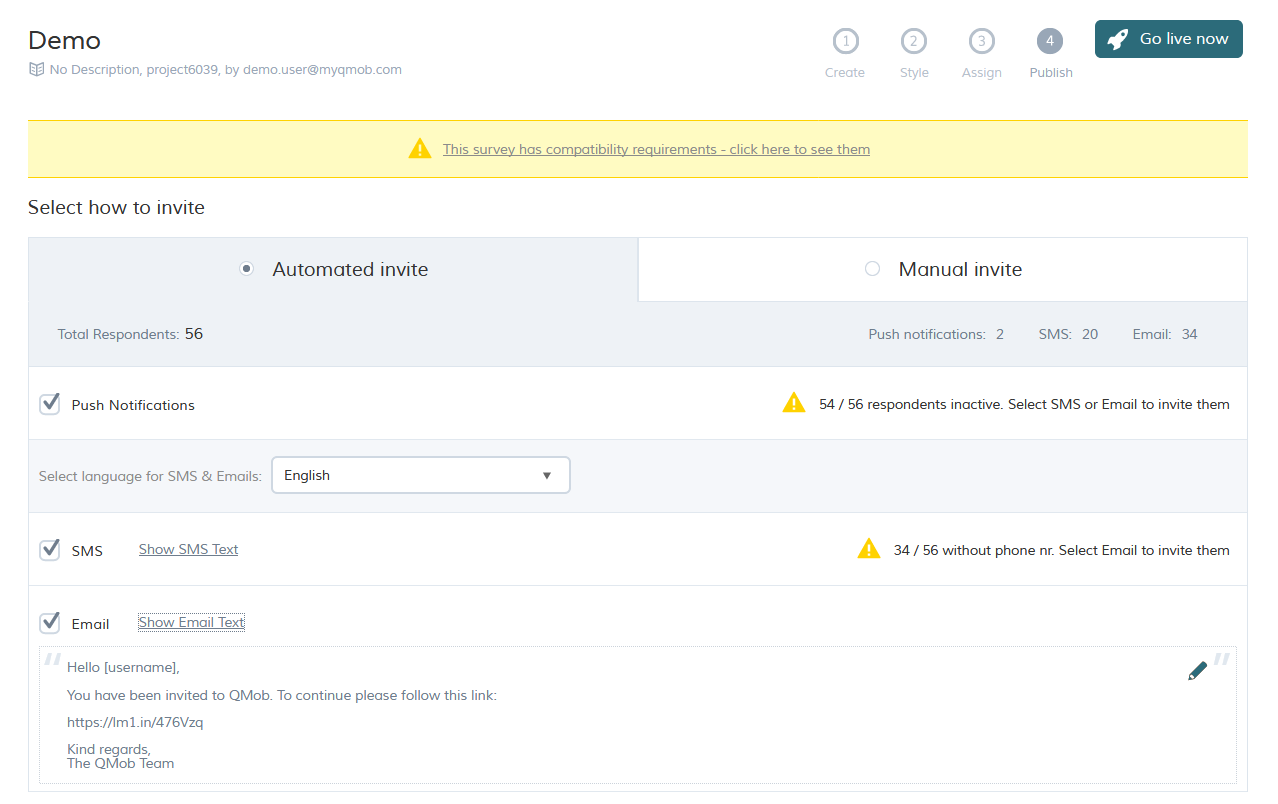
The default email text can be edited. To do so, first press Show Email Text and then click the pencil icon on the right. Please be careful with removing '$respondent_id' and '$link' from the email. '$respondent_id' is there to automatically include the respondent username in the email, and '$link' is there to automatically include the respondents unique invitation link which gives the respondent an easy way of accessing the project.
Manual invite
You can also invite your respondents manually, either by just getting the survey link and appending the usernames on your own, or downloading a CSV file with customized links to every respondent.
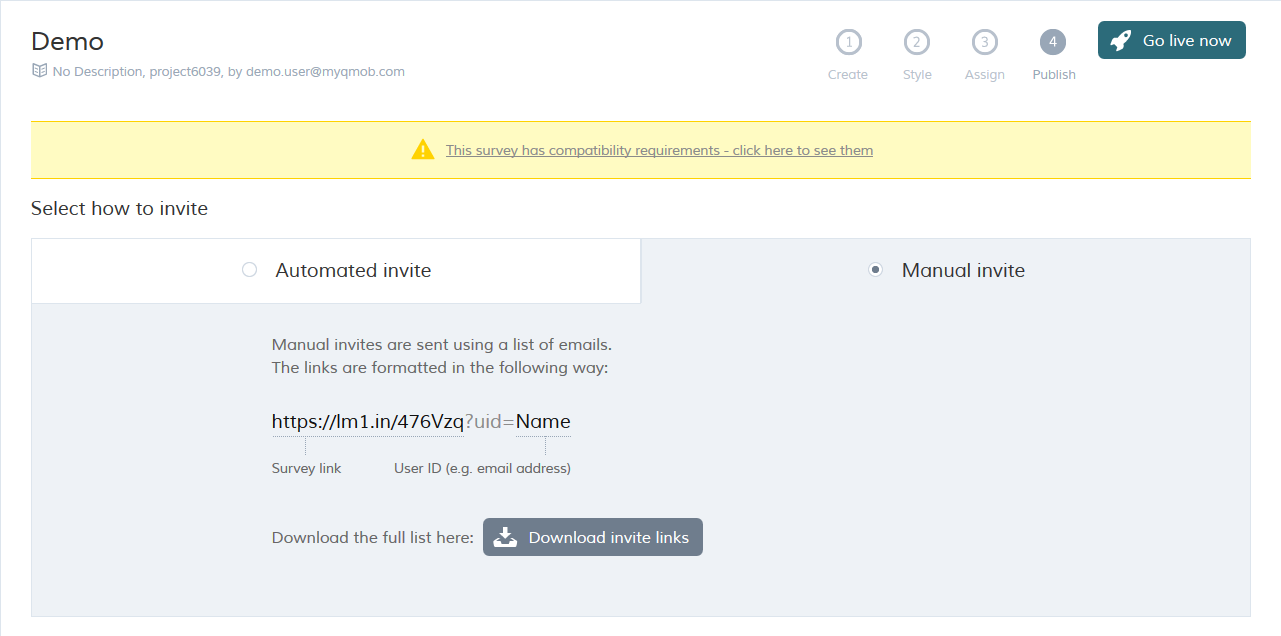
Once you are ready to go live, click go live now.