This article covers these topics:
- About the project list
- Working with project folders
- Managing projects
- Viewing and restoring deleted projects
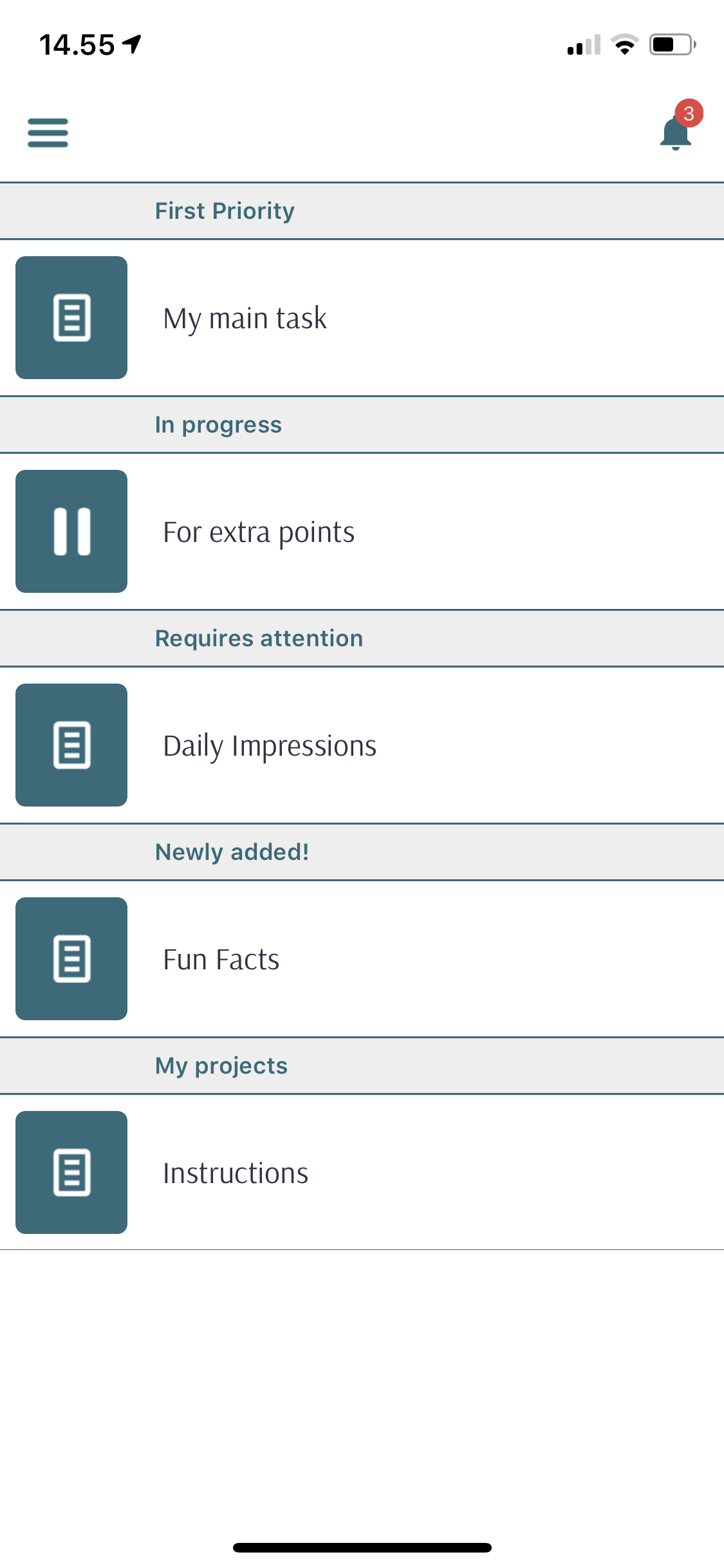
- Project list in the app (Home Screen)
About the project list
The project list allows you to view and manage your QMob projects. To open the project list, at the top right of the screen click projects.
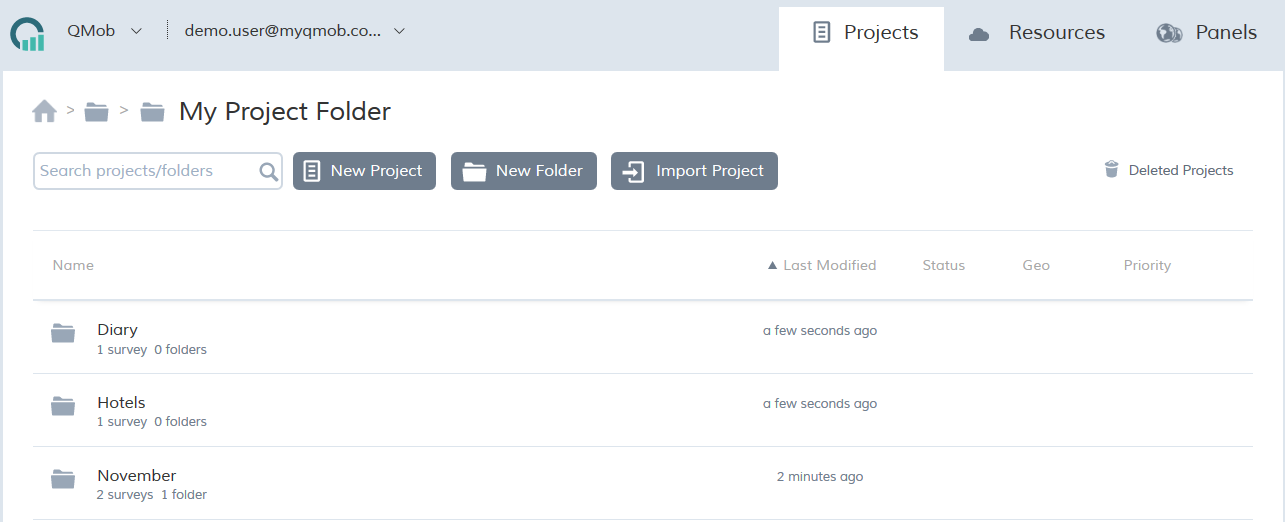
From here, you can create, open, edit and delete your projects. You can place your projects into folders in order to keep them organised, and make them easier to find.
Working with project folders
Project folders make it easy to organise your projects. You can drag and drop projects (or other folders) into your folders. To open a folder, and reveal its content, simply click its name; to close the folder and go back to home click the home icon in the top left part of the screen.
To create a new folder:
- At the top of the project list, click new folder.
- In folder name, type a name for the folder.
- In folder description, type a short description. (Optional)
- Click create, or press ENTER on your keyboard.
To delete a folder:
- Click the folder you wish to delete. Note: do not click the name, as this opens or closes the folder; click anywhere else on its row.
- At the top of the project list, click delete (the trash can icon).
Managing projects
The project list allows you to manage your projects. To open a project, simply click its name. You will then be able to edit it. From the project list, you can also create new projects, import projects, delete projects and make copies of existing projects. All of these operations are explained below.
Creating a new project
For details, see Creating a new project.
Editing an existing project
For details, see Editing an existing project.
Importing a project
For details, see Importing and exporting projects.
Deleting a project
To delete a project:
- Click the project you wish to delete. Note: do not click the name, as this opens the project; click anywhere else on its row.
- At the top of the project list, click delete (the trash can icon).
Duplicating a project
Duplicate creates a new project which is a complete copy of the project you selected for duplication.
To duplicate a project:
- Click the project you wish to duplicate. Note: do not click the name, as this opens the project; click anywhere else on its row.
- At the top of the project list, click duplicate.
- The option for duplicating project reports is selected by default. Deselect this if you do not want the report configuration to be duplicated.
- In the confirmation dialog, click duplicate if you want an exact copy of the project. Click Generate job# if you want an exact copy of the project but with a new unique Job Number.
Use Duplicate to save time when you are setting up a new project that is similar to an existing project. Duplicate the original project and use the copy as the basis for your new project. You can then add, amend or delete any content in the copy without affecting the original.
Please note: If you chose to duplicate the reports but will be making changes to the new project, please go to the Reports tab and update the reports once all changes are completed. This will ensure the reports work with your new project setup.
Viewing and restoring deleted projects
You can view a list of any projects that have been deleted from your QMob dashboard. If you wish, you can then restore any of these projects.
To view a list of deleted projects:
- At the top of the projects list, click deleted projects. The list of deleted projects appears. You can return to the standard projects list by clicking deleted projects again.

- To restore a deleted project, hold the mouse pointer over the project; the restore icon appears. Click this icon to restore the project, and return it to the standard projects list.

Project List (Home Screen) in the app
Projects are displayed under different headers in the Home Screen (see below) starting QMob 3.3, which was released in February 2019.
| Header | Description | Next move |
| First Priority | All projects with Priority (1) will always be displayed here. | projects with priority (1) do not move out of this header section. |
| In progress | All paused projects will be displayed here. | once resumed (complete/incomplete), projects will go to "My projects" |
| Requires attention | All projects that have received notifications will be displayed here. All notifications (local and remote) are displayed in the Notification Centre at the top right corner. | once opened, the project will go to "My projects" |
| Newly added! | All projects that have not received any entries will be displayed here. | once an entry is made, the project will go to "My projects" |
| My projects | All projects that do not fit any other head sections will be displayed here. | N/A |