
This article covers these topics:
Project properties
To edit the properties of your project, click the properties button at the top of the project view:
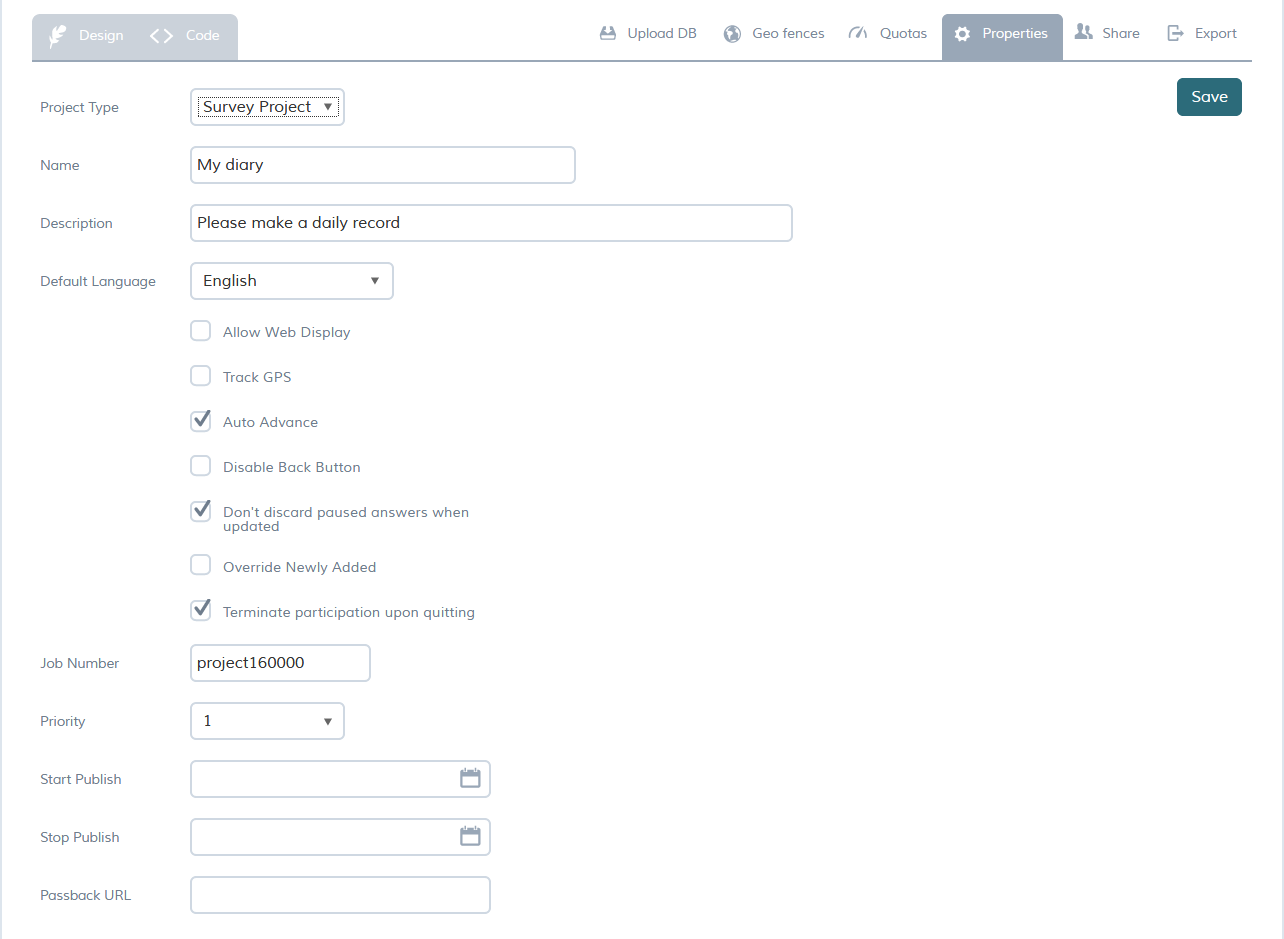
The available properties are as follows:
| Field | Description | Value |
|---|---|---|
| Project Type | The project type (indicated whether it is a survey or diary project). | Survey/Diary |
| Name | The name of your project; this is visible to the respondent in the app and on the web-survey as well. | a-z, A-Z, 0-9 |
| Description | This is an optional field, allowing you to provide a short description of your project. This is visible to the respondent in the app only. | a-z, A-Z, 0-9. Limited to 30 characters |
| Default Language | The language the survey is scripted in; this language will be used for all respondents if no other translation is provided. | drop down menu of languages (defaults to English) |
| Allow Web Display | Enables the survey to be taken on any supported browser; if this option is selected, respondents will not need to have the app or log in to take part. | tick box |
| Track GPS | Saves the GPS coordinates of the respondent when the entry was made. | tick box |
| Auto Advance | If selected, the respondent will automatically be moved on to the next question as soon as they tap an answer to a single-coded question (i.e. without the need to tap next). | tick box (selected by default) |
| Disable Back Button |
Prevents the respondent from going back to a previous question. This can also be controlled on question level from the question options. |
tick box (true/false) |
| Don't discard paused answers when updated |
Allows users to keep their paused entries when the project is updated. Use this if you have project database that will be updated regularly after going live. Be careful! you should not use this if the changes must take effect immediately. |
tick box (true/false) |
| Override Newly Added |
The project will appear under My Projects in the app right away instead of first showing up under Newly Added. For more information see Project List (Home Screen) in the app. |
tick box |
| Terminate participation upon quitting | For Survey projects. When selected, and the respondent Quits in the middle of the entry, the survey will disappear from the app. When unselected, the survey will remain accessible in the app. | tick box (selected by default) |
| Job Number | An optional reference code that can be used to refer to the project when communicating with the QMob Team (it is also the main reference for project billing). If you leave this option empty, QMob will generate an automatic unique number. If you try to use a job number that has been used before, QMob will warn you, but you can still proceed with it if you wish. | a-z, A-Z, 0-9 |
| Priority | Controls the order of the project in the app. refer to this page | |
| Start Publish | This optional field allows you to set a starting publish date for your project. This date must be in the future. Automatically works according to respondent time zone. | Date & Time picker |
| Stop Publish | This optional field allows you to to set a stop publish date for your project. This date must be in the future and after the Start Publish date. Automatically works according to respondent time zone. | Date & Time picker |
| Passback URL | This optional field allows you to provide a URL which will be called whenever a complete is made. See a note on passback URLs for further details. | URL |
A note on passback URLs
The optional field can be viewed and edited in a project's properties. It must contain a valid URL. This URL will be called whenever a complete is made. This is useful if you want to keep track of the count of completes from an open link, rather than your dashboard (this allows you to share the number of completes without sharing the actual data). For more details on passback, see passback with values as variables.