
This article covers these topics:
About the question list
The question list allows you to view and manage your QMob projects. To open the question list, simply open a project; the list of questions in the project is displayed:
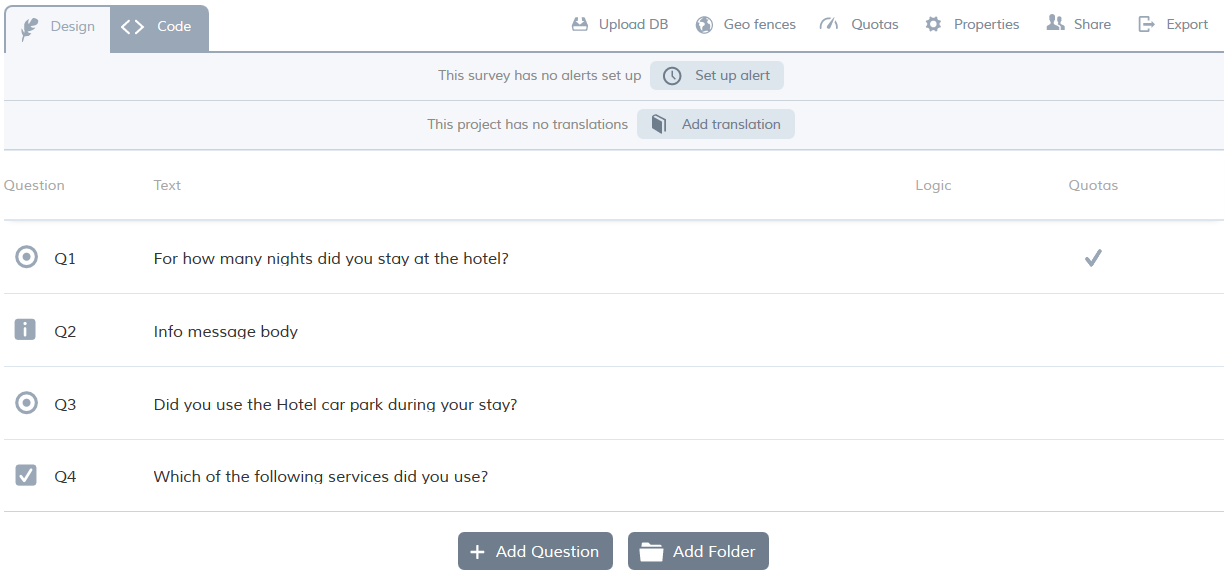
From here, you can create, edit and delete questions in your project. You can place questions into folders in order to keep them organized, or to control the order in which they are presented during the interview. For information on question folders, see working with folders.
The order in which the questions appear in the list determines the sequence in which they will be presented during the interview. Simply drag and drop the questions and folder into the order in which you want them to appear.
Adding a question
To add a question to your project:
- At the bottom of the question list, click add question.
- In the drop-down list, select the question type.
- Define your question. The question type determines which properties are available. All question texts can be formatted in bold or italics by using standard html tags <b> and <i>. The question text color can be formatted with hex color codes, for example <font color="#0000ff">.
Editing an existing question
To edit an existing question:
- In the question list, find the question you want to edit.
- Click the question name.
- You can now change any of the question properties, as required. The question type determines which properties are available. For details, see the list of question types.
Question types
You should select an appropriate question type, depending on what type of data you want to collect with that question. Each question type has its own set of properties. For more details of a specific question type, follow the corresponding link below:
| Question type | Description |
| Info message | Displays a message on the screen, and does not collect any data. |
| Detailed Info Message | Like Info message but allows for multiple paragraphs. |
| Single choice | Presents a list of choices, only one of which can be selected by the respondent. |
| Multiple choice | Presents a list of choices, more than one of which can be selected by the respondent. |
| Slider scale | Presents a sliding scale; the respondent chooses a point on the scale. |
| Ranking | Presents a series of statements, and allows the respondent to rank them in an order of their choosing. |
| Open text | Collects open-ended text data (e.g. for an email address). |
| Open numeric | Collects numeric data. |
| Multiple open text | Presents several open-ended text questions on one screen. |
| Multiple open numeric | Presents several open-ended numeric questions on one screen. |
| Menu | Allows you to build menu pages for diary surveys. |
| Date/Time input | Asks the respondent to specify a date, time or date and time. |
| Photo capture | Collects a photograph taken by the respondent on their mobile device. |
| Audio capture | Collects an audio recording taken by the respondent on their mobile device. |
| Video capture | Collects a video taken by the respondent on their mobile device. |
| Video display | Displays a video to the respondent. |
| Barcode scanner | Allows the respondent to scan a barcode, using the camera on their mobile device. |
| Feedback/Rating | Feedback question consists of 5 star rating and an open text field for elaborating. |
| Multitype | Allows you to present three different question types on one screen in the app. (Top and bottom label, Open numeric question, Boolean) |
Deleting a question
To delete a question:
- Click the question you want to delete. Note: do not click its name, as this will open the question editing for editing.
- At the top of the question list, click delete (the trash can icon).