
Alerts are pop-up messages that appear within the app, to issue messages to respondents, for example to remind them of tasks they need to complete. They are set up within your project, as described below. Alerts are scheduled once the survey is downloaded. They have no financial cost associated with them.
There are two types of alert:
- Single: which occur once, at the specified date and time, or when a condition is true.
- Repeated: which occur multiple times, with a preset frequency for a specified period of time, or as long as a particular condition is true.
Adding an alert (reminder) to your survey
To set up an alert:
- When your project is open, at the top of the question list click set up alert.
- A dialog appears, allowing you to configure the alert, as described below.
- Click save.
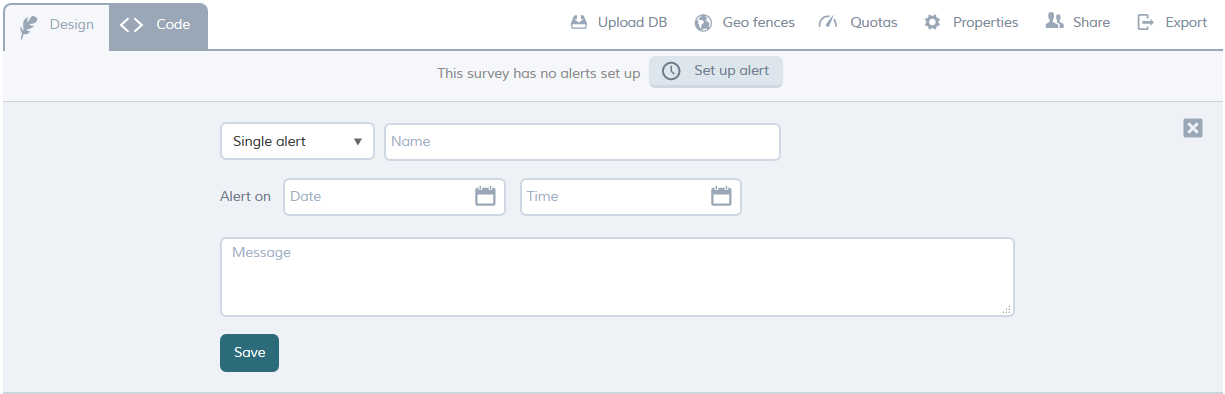
The following properties are available on alerts:
| Property | Description | Value |
|---|---|---|
| Alert Type | The alert type; indicates whether it is to be a single (one-off) alert or a repeated alert (will appear at a specified frequency between two specific dates). | Single/Repeated |
| Name | The name of the alert or reminder (will be displayed to the respondent, as the title of the alert). | a-z, A-Z, 0-9 |
| Alert on (Date and Time) (single alerts only) | The date and time at which the alert should occur. | Date picker/Time picker |
| Start (repeated alerts only) | Date on which the alert should begin. | Date picker |
| End (repeated alerts only) | Date on which the alert should finish. | Date picker |
| Repeat every (repeated alerts only) | Allows you specify the frequency at which the alert will be repeated (specify the interval between messages in hours or days, and select hours or days as appropriate. | 0-9 and hours/days |
| Alert only between (repeated alerts only) | Specifies the hours of the day during which the alert can be displayed. For example, if you select 12:00 and 17:00 then the alert can only appear between these hours. | Time picker |
| Message | The main text of the alert, that will be presented to the respondent. | a-z, A-Z, 0-9 |
Examples
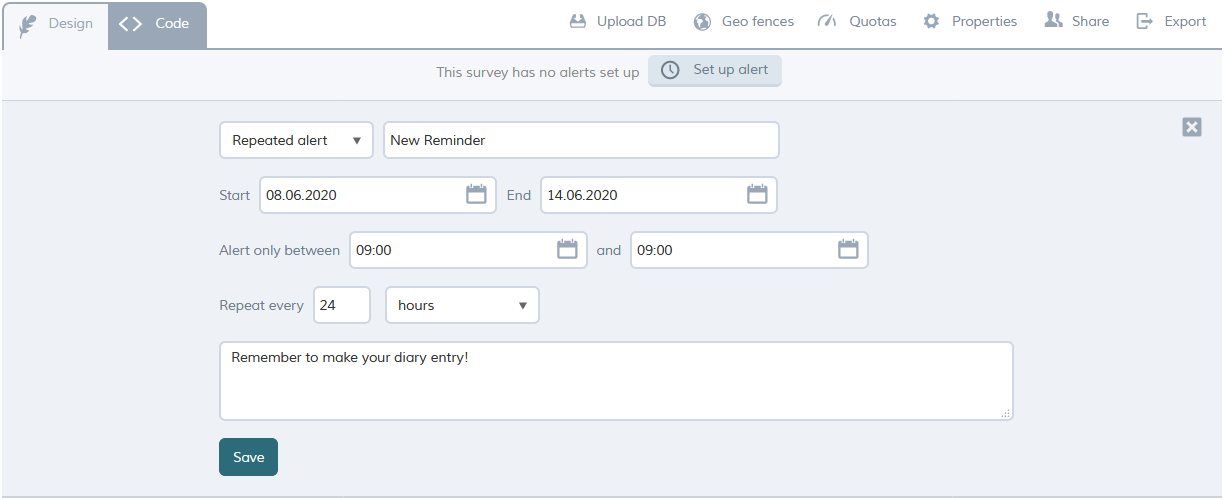
1. Repeated alert that repeats every morning at 09:00 from 08.06.2020 to 14.06.2020:
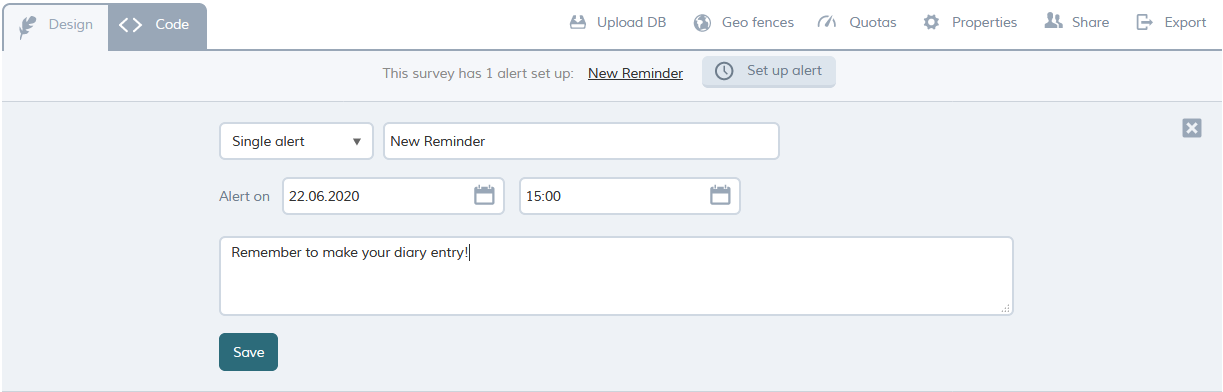
2. Single alert that occurs only once at 15:00 22.06.2020:
Note: you can also script alerts directly in the XML, and schedule customized alerts, based on the respondent's behavior. For details, see advanced alerts.