
QMob allows you to create multi-lingual surveys. You can add as many languages as you like to a project, and the appropriate one is displayed to each respondent. The process is straightforward:
Note: The Reminder/Alert text is now included in the project translation file.
To add a language to your project:
- When your project is open, at the top of the questions list, click add translation. The translation options are displayed.
- In the dialog which then appears, select the desired language from the drop-down list.
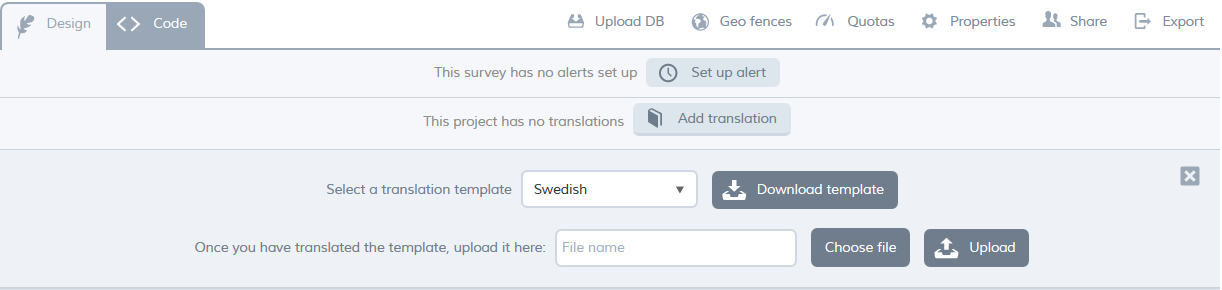
- Click download template. The Excel template file is downloaded to your computer.
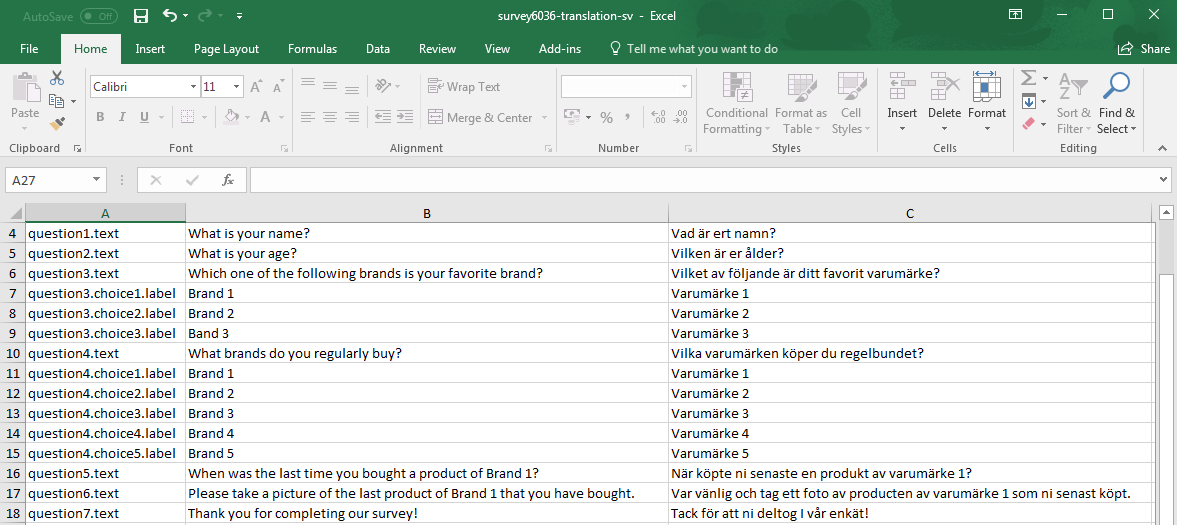
- Note that the file is password protected to prevent you from editing the original text and/or the question identifiers.
- In the Excel template, enter your translations in the right-hand column (column C). When you have finished, save the file with the same file name.
- In QMob, click choose file and select the template file (if the translation options are no longer visible, repeat step 1 above to display them).
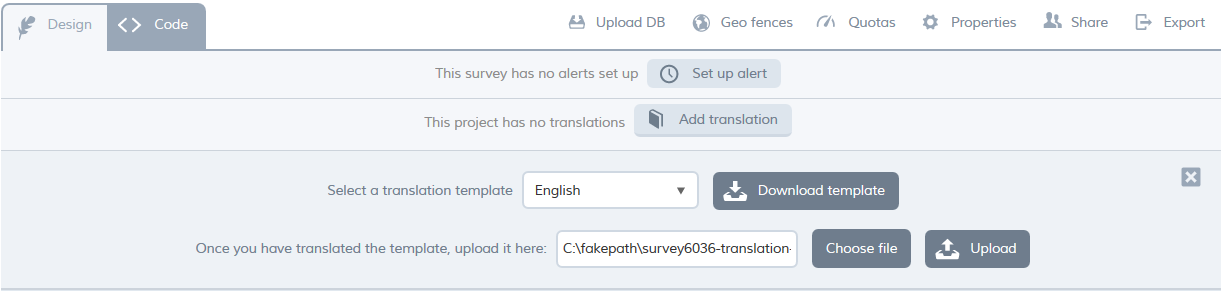
- Finally, click upload. The translation preview is displayed.
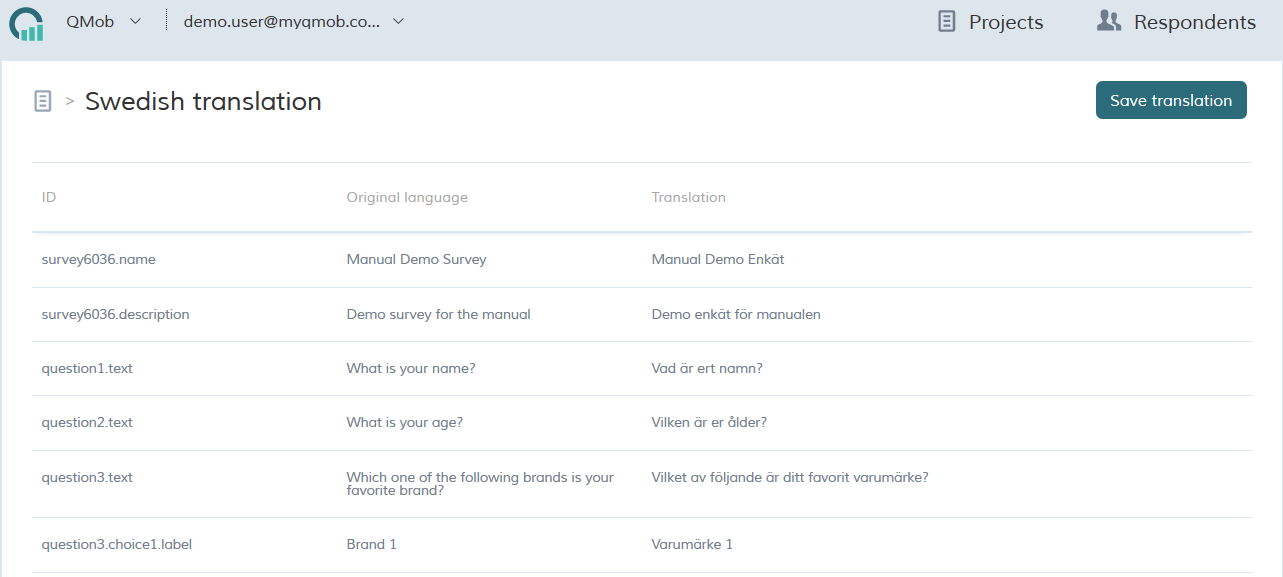
- Click save translation. The translated text is imported into your project. Repeat the above procedure for each additional language you want to add to the project or if you want to modify existing translations.
- Translation files can be removed as easily, by clicking (x) next to the file and confirming the deletion.

Note: The Original language is the language used in the creation of the Project.