
This article covers these topics:
- Introduction to survey links
- Survey link format
- Survey link parameters
- Appending variables to the survey link
Introduction to survey links (dynamic allocation)
Survey links with dynamic allocation can be used to automatically register new respondents, or to allocate current users from your company (dashboard), to a particular survey. Once a survey is created, you can obtain a URL from the publish tab of your survey. This link can be sent to respondents for self registration, removing the need to manually register respondents within the respondent manager (importing and registering new respondents). The link you provide to the respondent needs to be populated, by you, with the parameters explained below. When the respondent clicks on the link and is taken to the URL, their user is created, with the details you set in the parameters (registering in the QMob Respondent Manager).
After clicking the link, the new respondent will be instructed to set his/her password and download the app.
The newly-registered respondent will appear in your online dashboard, and be automatically placed in a group (that QMob will generate for you), labelled with the survey name (which is taken from the URL link they clicked on). The new group (labelled as survey name) will be set as live for the relevant survey (in other words, your survey will be published to the new respondent automatically).
Survey link format
The survey link has the following format:
To create a working link, you need to add ?uid=YYY to the end of link (where YYY represents the actual username), if this is not added the registration will NOT work, so it looks as follows:
You can select the display language and the SMS language by adding "&lang=language_code" language. You can also add "&pwd=n", to the end of the link, if don't want to create password. By default it will create a password if one is not included in the link.
Survey link parameters
The link parameters you can add are as follows:
| Parameter | Description |
|---|---|
| uid | The preferred User ID (username for the mobile application login) of the respondent (added by you in the dashboard) |
| pwd |
The password, for the mobile application login, whether "y" or "n". If "n" the user is created without a password. This parameter is optional, the default is set to "y" |
| uid_email | Will set the users email to the to the value specified. (Note: This parameter is only taken into account when a new user is added, so you can't use this to set/change email for existing users.) |
| uid_phonenr | Will set the users phone number to the to the value specified. (Note: This parameter is only taken into account when a new user is added, so you can't use this to set/change phone number for existing users.) |
| lang | The language code of the selected language: refer to supported languages |
| dl | Disables the app download (dl=false) and force respondents to take the survey via web even in restricted mode. By default dl=true. |
Appending variables to the survey link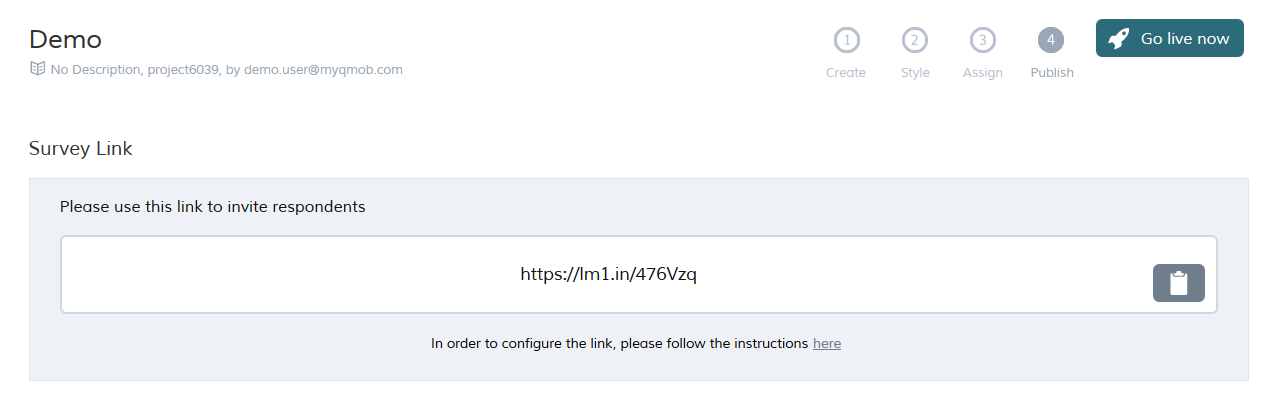
Custom variables can now be appended to a web survey link and made available within the survey. This enables the transfer of information between web pages or email links and the survey, allowing for more streamlined recruitment.
Append custom variables using the & sign, as follows:
System parameter uid is preceded by ?; all other variables are separated by &.
Encode function
We recommend that you use the encode function when you append variables that contain open text answers, because the data might include reserved characters or symbols that could break the link. This function wraps the response data and makes sure it is treated as a string:
Please note that you can not encode the equal symbol (=).
Using appended variables within your project
Appended variables are treated as global variables within the project; all normal rules apply to read/write the values.
Survey Link reserved variables
Note that although the survey link parameters are reserved variables, you can set them via custom variables, such as: